

Edit Plan Values in Bulk
Quickly edit plan values using a third-party application and import the data back into Visier.
You can edit plan values outside of Visier in bulk. To make bulk changes, download a CSV file that matches the structure of your plan. Make changes in an editor such as Microsoft Excel or Google Sheets, and then upload the file.
- Download the CSV file for your plan from Visier.
- In the planning grid switch to Segments view.
Select the plan item you want to edit plan values for using the Context picker.
The exported CSV file will contain data that is similar to what is displayed in Segments view. Based on the selections in the following screenshot, the CSV file will be used to edit the plan values for Headcount.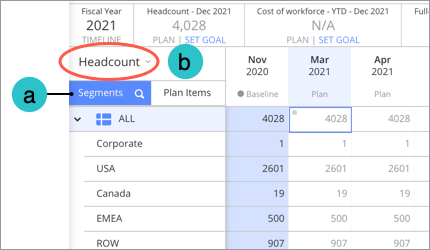
- Click the Download data as spreadsheet button in the toolbar.
In the Download as spreadsheet dialog, click the For editing tab.
Note: The For editing option is only available when you're in Segments view and a plan item that can be edited is selected.
Click Download.
Result: The file may take a few minutes to process. After it is processed, the file will download automatically.
- Open the CSV file in the application of your choice and edit the plan values. Remember to save the file after making your changes.
Note:
- The exported CSV file uses commas as the default separator (delimiter). If your CSV editor uses another separator type such as semicolons, you'll have to change the separator setting to commas so values in the file appear correctly.
- The exported CSV file uses UTF-8 character encoding. In order for characters to appear correctly in Visier the imported file must also be set to Unicode (UTF-8).
- The separator and unicode settings can be configured when importing the exported file into your CSV editor.
- For the import to work correctly, the structure of the CSV file must match the structure (segmentation) of the assumption model or plan that is being edited. This means you cannot add or edit the plan dimensions in the CSV file. Plan dimensions are the segment columns.
- Upload the CSV file to Visier.
- In the planning grid, click the Upload spreadsheet button on the toolbar.
- Select the CSV file on your computer or drag and drop the CSV file to the Upload spreadsheet dialog.
- Optional: To skip rolling up values after the upload, turn off the Roll up after upload toggle. The toggle is on by default. It rolls up values from the leaf levels of your plan after the upload, which resolves potential conflicts in the planning grid. For more information, see Solve Plan Value Conflicts. If you turn off the toggle, there is a high chance many child rows will not add up to the values of their parent rows. This is not something you can fix in bulk and will require manual editing.
Click Upload.
Review the plan values in the planning grid to ensure your changes were imported correctly.
Note:
- The maximum file upload size is 20 MB.
- You can use the undo actions on the toolbar and planning grid to revert any changes made by the uploaded file.